How to View a Project’s Inspections
View a Project’s Inspections
The system allows you to review all inspections linked to a specific project or work site directly from the main dashboard.
🔹 Steps to View Inspections
Open the Projects Dashboard
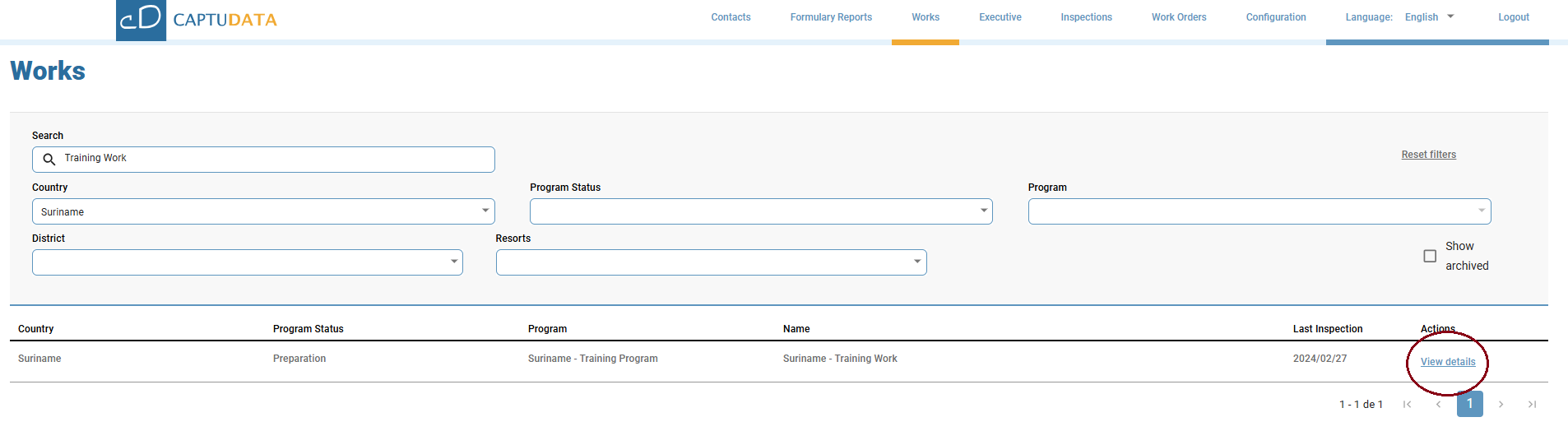
Go to the Projects/Works panel and search for the project or work site you want to view.
Select “View Details”
Once you locate the project, click “View Details” on the right side of the project card.
Access the Inspection History
From the details view, you can access the full history of all inspections associated with the selected project.

Notes
This option displays all recorded inspections, not just the most recent one.
If you only need to see the latest inspection, use the “View Latest Inspection” button available in the project details.
4. Within the project details, select the “Inspections” tab to access the full list.
Result
Once you have completed all the steps, you will be able to view the full list of inspections carried out for the selected project.
Notes The inspection history includes dates, observations, and uploaded evidence.
To filter or search for a specific inspection, you can use the options available within this tab.
Related Articles
View Inspection Details
View Inspection Details To see the details of an inspection for a specific project or work site, follow these steps: ? Steps to View Inspection Details Open the Projects Panel Go to the Projects/Works panel. Search for the Project Locate the project ...
Change the Project Map View
Change the Project Map View in CaptuData During an inspection, you can view a map on the right side of the screen that offers four different map styles to suit your needs. ? Steps to Change the Map View 1️⃣ Simple Map View (Default) This is the ...
Edit Project Details
How to Edit the Details of a Project or Work Site The system allows you to update the information of a project or work site whenever necessary. 🔹 Steps to Edit Details Open the Projects Panel Go to the Projects/Works panel. Search for the Project ...
Set an Inspection as the Default
Set an Inspection as the Default The Set as Default option lets you assign a specific inspection’s location as the official project location. When you set an inspection as default, the project will use that inspection’s geographic location. ? Steps ...
Edit an Unpublished Inspection
Edit an Unpublished Inspection After completing an inspection using the mobile app, you can edit the inspection as long as it has not yet been published. Once an inspection is published, its observations can no longer be edited. This applies to both ...